Screens
A screen is one display in a branch: its size, its orientation, the device paired to it, and the record of what it has been sent.
What a screen is
A screen is one display in a branch. It exists in the dashboard before any television is attached to it, which is deliberate: you describe the wall first, then hand a physical display to it.
Name it after where it hangs. The name is what appears in a fault report at nine in the morning, and Counter left is a more useful thing to read than Screen 3.
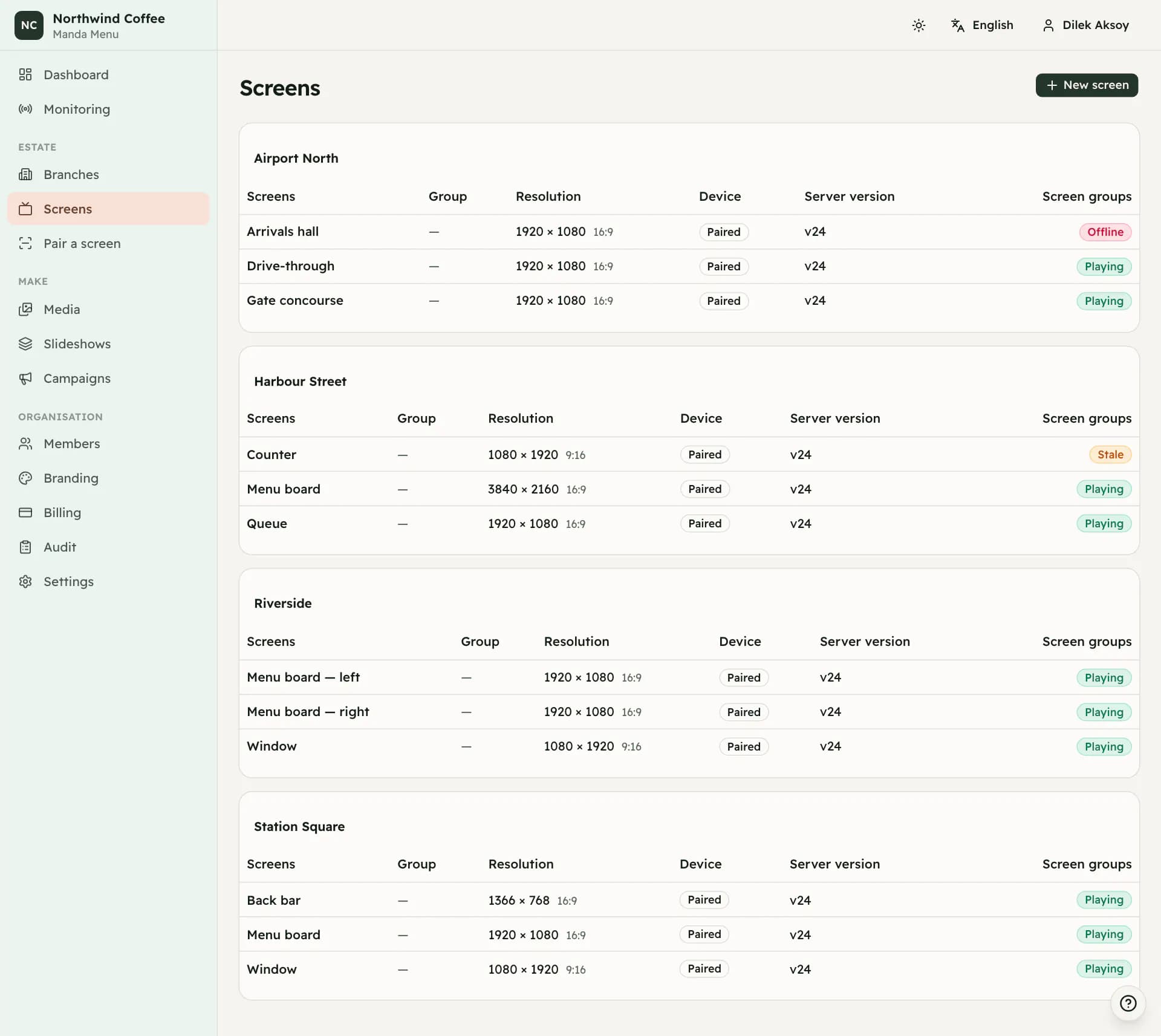
The list is grouped by branch and shows, for each screen, the group it is in, its resolution, whether a device is paired, the version the server intends it to run, and its current state.
Size and orientation
Every screen carries a width and a height in pixels, between 320 and 7680 on each side, and an orientation of landscape or portrait. The aspect ratio is worked out from the two numbers rather than chosen separately.
These numbers decide which optimised copy of an image is sent to the display and how content is fitted, so a screen described as 1920 by 1080 that is really a portrait panel will look wrong. If you are not sure, the resolution is usually in the television's own picture or information settings.
When a display is paired it reports the viewport it is actually running at. That figure is recorded on the screen and shown next to the configured resolution, but it is never applied on its own. A television's browser can report a smaller window than the panel it is on, and quietly overwriting your setting with a runtime measurement would be a change nobody asked for.
The screen page
Opening a screen answers one question first: what is on this television right now. A single large preview of the saved configuration fills the page, and under it a line saying what is showing and when — the campaign it belongs to, and either Always on or which schedule window is running.
Two buttons sit beneath that line. Change content opens the library and the settings for the picture. Schedule opens the windows, if this screen has any. There is no page-wide Save: each of those closes by saving its own work, which is why the page itself only ever offers Publish.
Everything else is one line at the foot of the page — connected or not, how long ago, the resolution and the orientation — with Device details behind it. That drawer holds the whole diagnosis: what the player is doing this second, the server and player version numbers, the viewport the display actually reported, its network and storage, when it was paired, and the address it is running. Version history is a separate drawer, listing every published configuration with the time and the person who published it.
Saving and publishing
Saving a screen writes down what you decided. It does not change the television. When what is saved differs from what the display holds, a bar appears saying so, and Publish is what sends it.
This is deliberate: you can work through a screen's content and its schedules at your own pace, look at the preview, change your mind, and only then hand it to the wall. Publishing an unchanged configuration produces no new version and wakes nothing.
Only the active campaign reaches displays. Editing any other campaign is preparation — the Publish control is still there, and still says why it cannot run.
Confirming the setup
A newly paired screen is Not confirmed until somebody says the preview fills the display correctly. The question is answered in Device details, next to the viewport the player reported and the resolution you configured — which is the comparison the confirmation is actually about, and the reason it now sits there rather than competing for attention on the page.
It is a note to yourselves rather than a gate. An unconfirmed screen still plays. The badge exists so that a wall nobody ever stood in front of does not look the same as one that was checked.
Archiving a screen
Archiving a screen stops it receiving configuration and revokes the device credential of whatever television was paired to it. The display stops getting new instructions immediately.
As with branches, there is no way back from the dashboard. If a television is being moved rather than retired, revoke its device and pair it again at its new screen instead of archiving.