Pairing a screen
How a physical television becomes one of your screens: an address opened on the display, a six-character code, and the screen you assign it to.
How pairing works
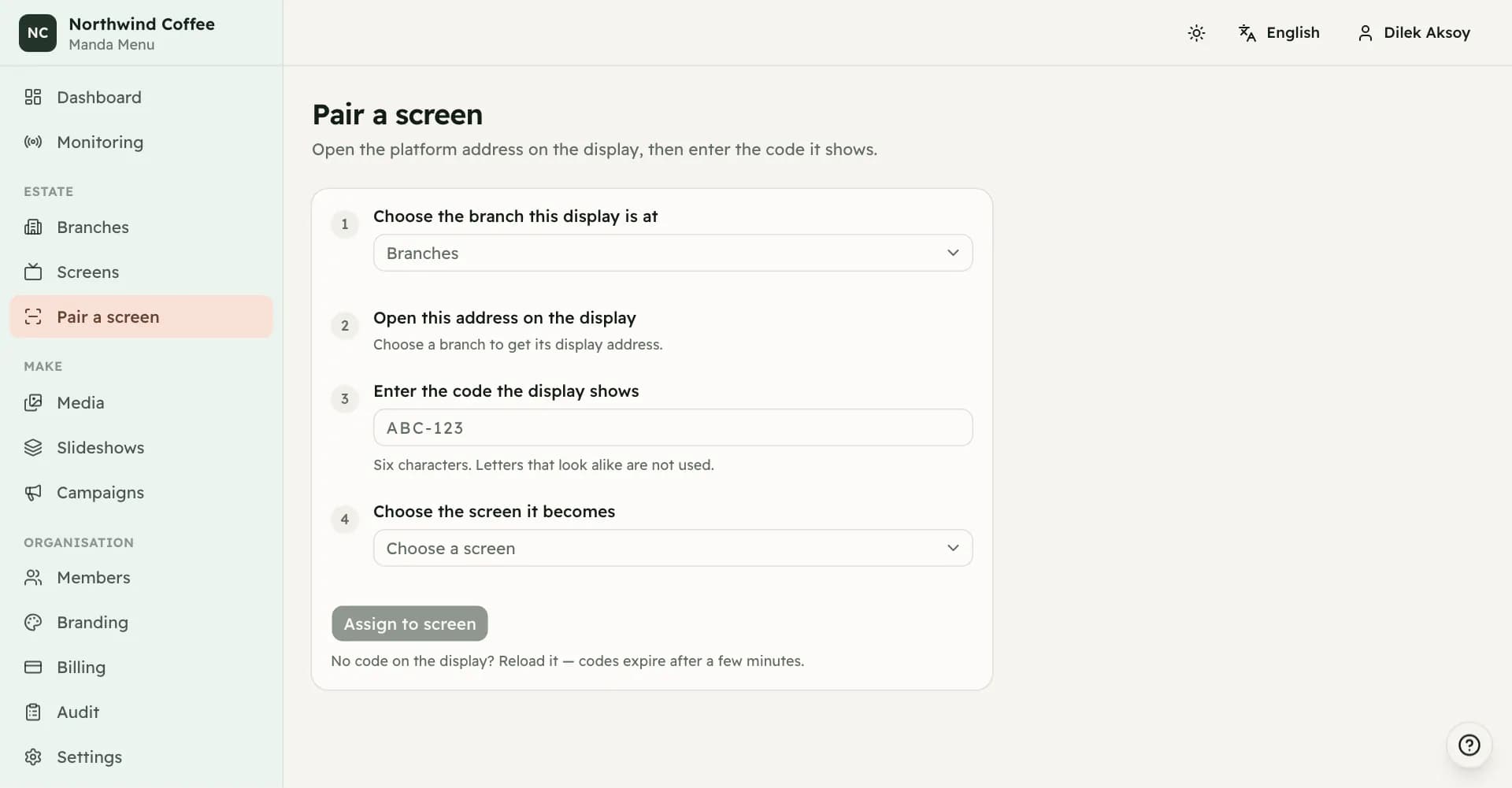
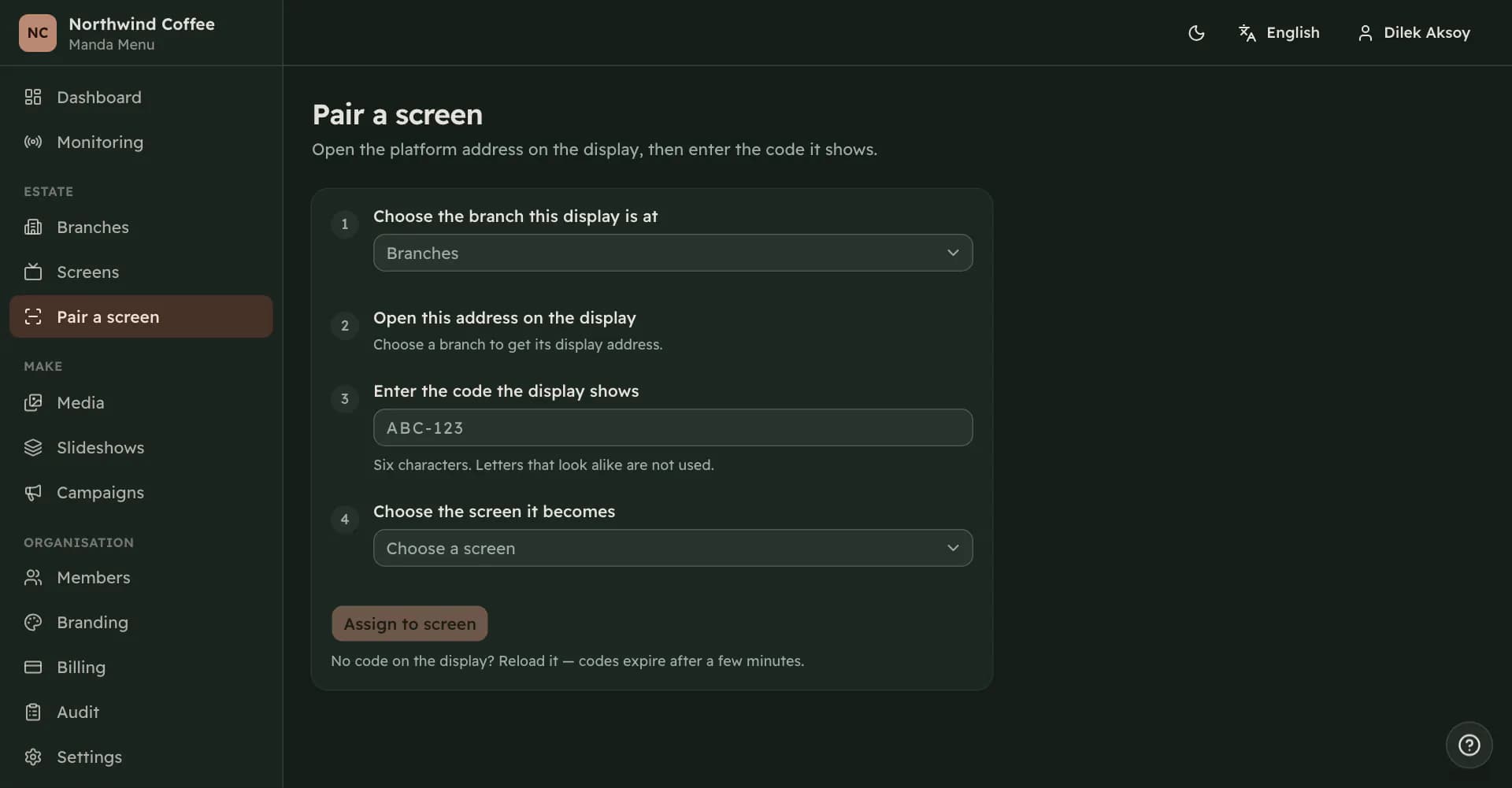
You open an address on the television itself. It shows a six-character code, in two groups of three, like ABC-123. You type that code into the dashboard and choose which screen the display becomes. That is the whole installation.
The code is created by the display and never by the dashboard. This is the point of the design rather than an accident of it: holding the code is the only evidence that you can actually see the television you are about to adopt. The dashboard cannot generate a code and cannot list the codes currently waiting anywhere in the world.
The characters that are easy to misread are left out of the alphabet, so there is no I, L, O or U to confuse with a one or a zero. Lower case is accepted and the hyphen is optional.
The display address
Each branch has its own short address, of the form /d/ followed by your organization's five-character code and the branch's own name — /d/K7M2Q/lobby. The pairing page shows it with a copy button once you have chosen a branch. It is built to be typed on a television with a remote control, so the code has no characters that look like each other, and you choose the branch half yourself when you edit the branch.
The older, longer form beginning /display/ still works and always will. A television set up before the short address existed does not need to be touched: a display is paired by the credential it holds, not by the address it was opened at.
The address carries the branch with it. A code that appeared on a television at one branch can only be assigned to a screen in that same branch, and cannot be claimed by another organization at all. This stops the two mistakes that actually happen on a rollout: adopting somebody else's television, and pairing the shop floor to the back office's screen record.
The four steps
Choose the branch the display stands in. Open the address it gives you on the television. Type the code the television shows. Choose the screen it becomes.
The list of screens you can choose from only contains screens at that branch that do not already have a display paired to them. If it is empty, either every screen at the branch is taken or the screen has not been created yet.
Pairing publishes to the screen immediately, so a display that has been given a screen with content on it starts downloading straight away rather than waiting for the next change.
When it does not work
A code lasts ten minutes and works once. If the television has been sitting on the same code since this morning, reload the page on it and read the new one.
The dashboard says which of the things went wrong. The code is not valid means no such code is waiting, which is also what you see if the code belongs to another organization. The code has expired means reload the display. The code has already been used means somebody else claimed it. If the branch does not match, you have typed a code from one branch and picked a screen in another. If the screen already has a display paired to it, revoke that device first.
Revoking and re-pairing
Revoking a device is done from the screen page. The display stops receiving configuration and says, to whoever is standing in front of it, that it needs to be paired again. The screen goes back to being unpaired and can take a new display.
Where a fallback image has been set — on the screen, or inherited from the branch or the organization — the display shows that image and puts the notice in a small stripe along the bottom instead of filling the television with it. A menu board in a shop window is public, and a customer should not be reading about device authorisation where the menu used to be.
Revoke when a television is replaced, moved to another wall, or has left the building. There is nothing to uninstall at the display end.