Getting started
What this software is for, the six steps between a blank television and a screen that is playing, and where each of them happens.
What this is for
This runs the screens in a business that has more than one location. Menu boards, price lists, promotions, queue displays: the things a customer standing at a counter reads. You change a price once here and every branch shows it, rather than someone driving out with a USB stick.
There is no player box to buy and nothing to install. A screen is any television, stick or old laptop that can open a web page and stay on. You open one address on it, type in a short code, and from then on it takes its instructions from this dashboard.
The people who run the branches are meant to use this, not a designer or an agency. Whoever uploads the artwork uploads it here, and whoever decides it goes live publishes it here.
The six steps
Getting a first screen live takes six steps, and they are in the order they depend on each other rather than in order of difficulty. Add a branch. Add a screen to it. Pair the television. Upload something to show. Build a slideshow. Put it on a screen in the live campaign.
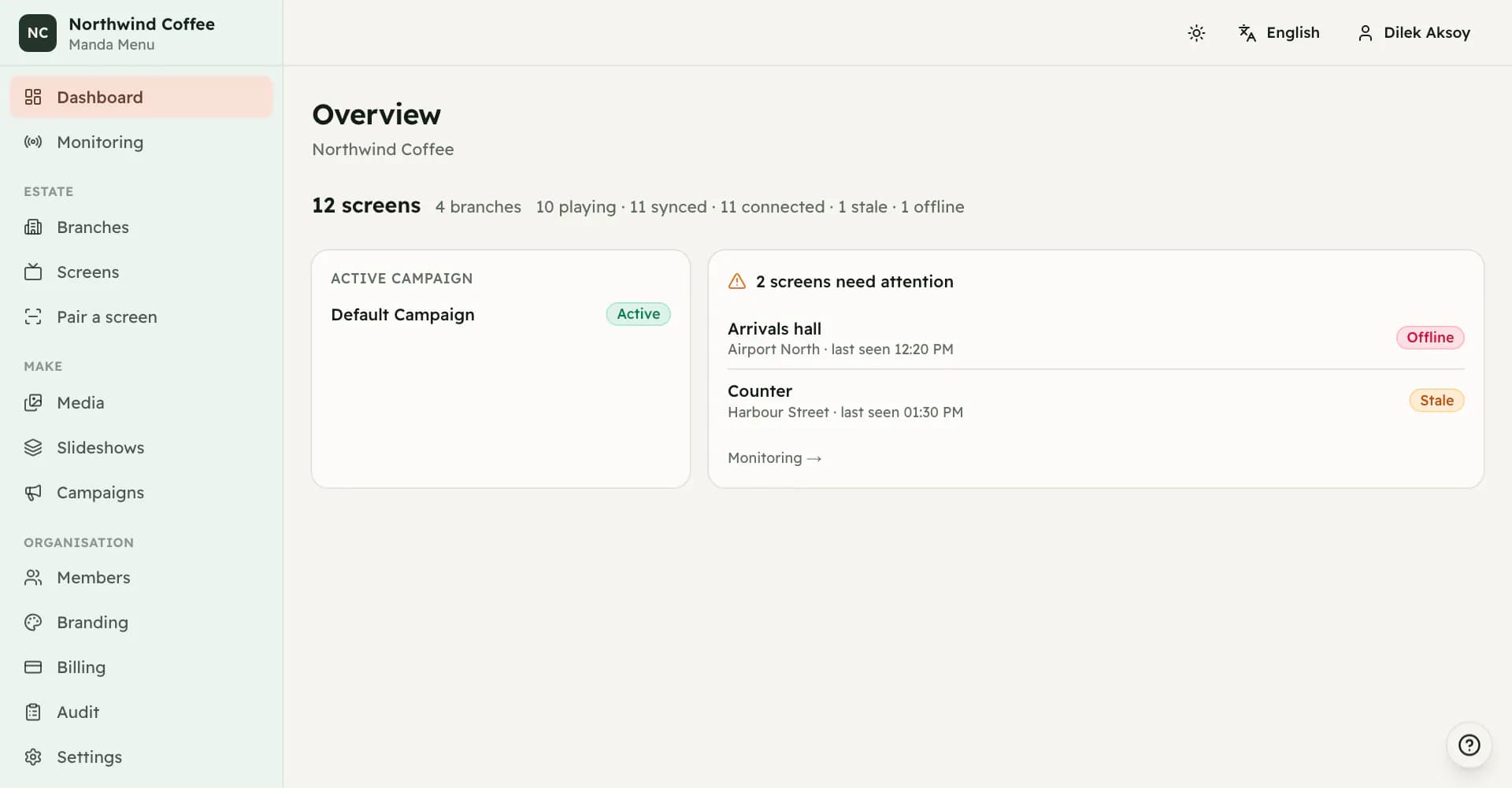
The checklist on the dashboard shows where you are. It is worked out from what actually exists in your account each time the page loads, so it is never out of date and there is nothing to tick off by hand. A step counts as done when there is at least one of the thing: one branch, one screen, one paired device, one piece of media, one slideshow that has slides in it, and one screen in the active campaign that has been given something to show.
The sidebar carries the next step with you while you work, so leaving the dashboard does not mean losing your place. Both the checklist and that reminder disappear on their own once a screen is carrying something.
What your organization already has
A new organization is not empty. It is created with a campaign called Default Campaign, and that campaign is already active. This matters because the campaigns page is therefore never empty and having an active campaign tells you nothing on your first day. What tells you something is whether a screen inside that campaign has been given a presentation.
It also starts with a set of organization settings you can change later: English as the default language, UTC as the timezone, a black background behind letterboxed content, thirty days of trash retention, and an offline policy of continue, which means a screen that loses its connection keeps playing what it has.
If the people running the platform have set a default package, your organization is put on it when it is created. Which features are switched on for you depends on that package.
Where everything lives
The sidebar is in four groups. Run holds the Dashboard and Monitoring, the two pages that tell you what the estate is doing right now. Estate holds Branches and Screens, the description of your locations and the displays in them. Make holds Media, Slideshows, Menus and Campaigns, in the order they depend on each other. Organisation holds Members, Branding, Billing, Audit and Settings.
You will not see all thirteen. Each destination is shown only to people whose role allows the work done there, so a viewer sees fewer entries than an owner. If a page you were told about is missing from your sidebar, your role is the reason.
What is not here
There is no self-serve checkout. Plans are arranged with the people running the platform, invoices are issued from the dashboard, and payment happens by transfer.
Self-checkout kiosks are described on the public site as something being built. They do not exist in this software today, and nothing in the dashboard will produce one. Menus and the phone menu behind a QR code do exist — they are in Menus, and on each branch card — where your plan includes them.
There is also no scheduled report, no export of the audit trail, and no way to un-archive a branch or a screen once you have archived it.